
EVICTED TRIGGER - User guide
Install the loader, set your keys, load a gun preset, and turn on Aim Assist. Use Help if something does not work.
Setup · Step 1 of 4
Install and launch
Get Windows ready, download the loader, and open it.
Do these steps in order. If you skip one, the loader may not start.
-
Disable Windows Defender with DControl
Download DControl, unzip it, and open it. Click Disable Windows Defender.
Required: use the official download page below.
Open DControl download pageOfficial source · opens in a new tabdirect link · optional copyhttps://www.sordum.org/downloads/?st-defender-controlarchive passwordsordumYou should see: Windows Defender is disabled in DControl. -
Install system components
Install both packages below. The loader needs them to start.
Microsoft Visual C++ (x64) aka.ms/vc14/vc_redist.x64.exe DirectX Runtime microsoft.com · official pageYou should see: both installers finish without an error. -
Download the loader
Sign in to your dashboard with your key. Download the loader and save it to your desktop.
Download the loader download-loader.lol/new_loader · sign in with your keyYou should see: the loader file in your Downloads folder or on your desktop. -
Run it as administrator
Put the loader in a new empty folder. Then run it as administrator.
- Right-click the desktop. Select New → Folder.
- Move the downloaded loader into the new folder.
- Right-click the loader. Select Run as administrator.
- Wait for a new
.exefile with a purple ev icon. - Open the new file. Enter your key and click Load.
You should see: the purple ev loader opens and accepts your key.
If the loader cannot connect: turn on ProtonVPN and try again. The free plan works.
If you see your key is banned, reason null, contact support. Downloading the loader again will not fix it.
The loader opens and accepts your key. Installation is complete. Continue to Trigger setup.
Questions that come up
The archive looks empty when I open it
Use WinRAR. Right-click the archive and select Extract to folder.
Which file should I run?
Open the 14-19 MB file with the purple ev + shield icon. Do not use files under 8 MB.
Can I open Valorant first?
No. Use this order: loader → Steam → Valorant.
Loader crashes right after Login
Open Settings → Time & Language and click Sync now. If it still crashes, turn on ProtonVPN.
Error 5
This is a server error. Wait 10-15 minutes and try again.
"This app can't run on your PC"
Open the 14-19 MB loader file. Do not open the smaller file.
Setup · Step 2 of 4
Trigger setup
Set the same Secondary Fire key in the loader and Valorant. Choose an activation mode, then match the outline color.
Run Valorant in Fullscreen mode. The trigger does not work in Windowed or Borderless mode.
Secondary Fire is the key the trigger uses to fire in Valorant. Activation Key is a separate bind used for HOLD mode.
-
Set Secondary Fire Key
Open Trigger Bot. Set Secondary Fire to
P, or choose another free key.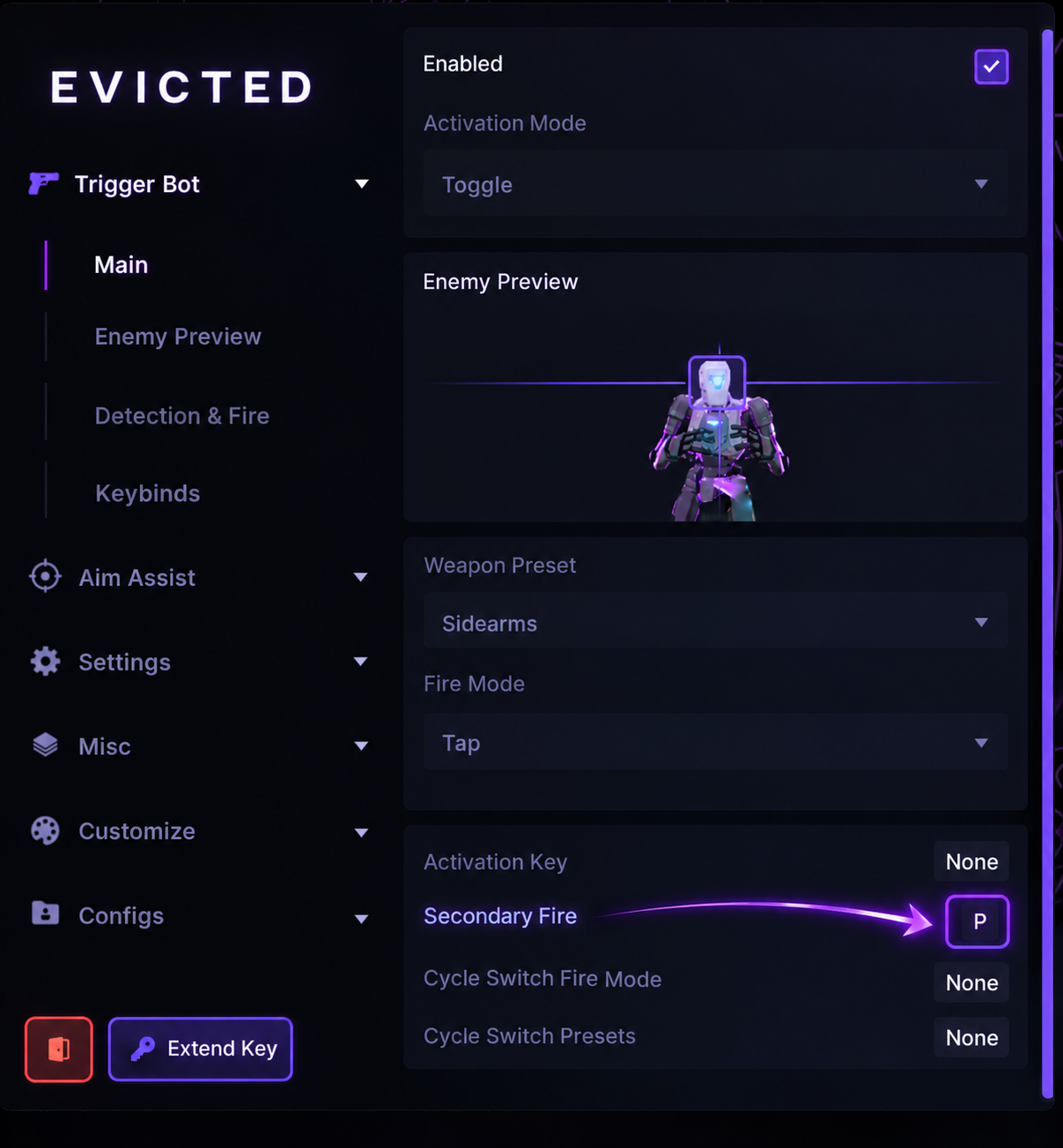
Follow the arrow: Secondary Fire is set to P.You should see: Secondary Fire: P, or the key you chose. -
Add the same key in Valorant
Open Settings → Controls → Equipment. Find Fire and add the same key. Keep Left Mouse Button.
You should see: Fire: Left Mouse Button, P.
Fire must show both keys: Left Mouse Button and P.

Enable Trigger Bot and choose an activation mode
-
Enable Trigger Bot
Go to the Trigger Bot tab and check Enabled.
-
Select your activation mode
Choose how you want the trigger to work:
TOGGLENo holding needed
Enemy detected? It shoots automatically.
No need to hold the activation key.HOLDHold to shoot
Hold your activation key + detect an enemy = automatic fire.
Release the key = trigger stops shooting.Using HOLD? Set Activation Key just above Secondary Fire (see the first screenshot). Hold that key when you want the trigger to shoot.
Match your outline color
Outline Color is the color around enemies. Use the same color in the loader and Valorant.
-
Pick a color in the loader
Open Trigger. Set Outline Color to Purple.
You should see: Outline Color: Purple. -
Set the same color in Valorant
Open Settings → General → Accessibility → Enemy Highlight Color. Select the same color.
You should see: the same outline color in both apps.
Setup complete: Fire has both keys, and both outline colors match.
Setup · Step 3 of 4
Gun configs
Load a preset. Change the timing only if you need to.
-
Open Configs
Open Configs at the top of the loader.
You should see: Rage and Legit in the preset list. -
Pick a preset
Select Rage or Legit. You can change it later.
You should see: your preset is highlighted. -
Load it
Click Load.
You should see: the values on the Trigger page change.
Choose a preset
| Preset | When to use it |
|---|---|
Rage |
Very fast reaction time. Easy for other players to notice. |
Legit |
Slower and smoother timing. Looks more natural. |
Speed before shoot controls the first-shot delay. Speed between shots controls the next-shot delay. Higher values are slower.
Help · Troubleshooting
Trigger not shooting
Try these checks in order. Test the trigger after each one.
Use a static desktop wallpaper. Animated wallpapers can stop color detection.
-
Disable animated or live wallpapers
Close Wallpaper Engine, Lively, and similar apps. Turn off Windows Spotlight.
You should see: the wallpaper does not move. -
Set a default Windows wallpaper
Right-click the desktop. Open Personalize → Background. Choose Picture or Solid color.
You should see: the wallpaper does not move. -
Try a different outline color
Choose another Outline Color. Set the same color in the loader and Valorant.
You should see: the same new color in both apps.
Restart the loader after you change the wallpaper or outline color.
If none of the checks helps, stop here and contact support. Include the exact error, a screenshot, your Windows version, and which check failed.
Setup · Step 4 of 4
Aim Assist
Set one key for Aim Assist. Hold it and check that the status changes to Activated.
-
Open the AimAssist page
Open AimAssist at the top of the loader.
You should see: the AimAssist settings and status. -
Assign a bind
Choose a side mouse button or
Shift. Do not use a movement key.You should see: your key in the bind box. -
Hold the bind
Press and hold the key. Listen for a short sound.
You should see: Activated in green.
Green Activated means Aim Assist is on. If the status stays red, set the key again.
Keep the default settings unless you know what each slider changes.
If it does not activate, send support a screenshot of the AimAssist page. Include the selected key and status.
Help · Reference
Frequently asked questions
Open the question that matches your problem or error message.
1 Where are the Trigger setup steps?
See all key and color steps in Trigger setup →
Open the Extra tab in the loader and find ShootKey. Set it to P (any unused key works).
Open Valorant → Settings → Controls → Equipment. Find Fire. Add P as the second key. Keep Left Mouse Button.
The final bind should read: Left Mouse Button, P.
Open the Trigger page and pick an Outline Color - purple is the recommended default.
In Valorant, select the same enemy outline color.
2 Where are the gun preset steps?
Preset selection and timing checks are covered in Gun configs →
Open Configs. Select Rage or Legit. Click Load.
To change the timing, open Trigger. Higher speed values make the trigger slower.
3 What if the trigger does not shoot?
Run the ordered checks in Trigger not shooting →
Use Fullscreen mode. Open Valorant → Settings → Video. Select Fullscreen and apply.
Use a static wallpaper. Close Wallpaper Engine or Lively. Turn off Windows Spotlight.
If it still does not shoot, choose another outline color in both apps.
Still not working? Send support a screenshot of the loader status.
4 Where are the Aim Assist steps?
The complete activation flow is in Aim Assist →
Open the AimAssist page in the loader.
Set a key and hold it. Listen for a short sound. The status should turn green and show Activated.
Keep the default settings unless you know what each slider changes.
If it does not activate, send support the selected key and a screenshot of the status.
5 Missing Keybind warning
This warning means ShootKey is not set as Fire in Valorant.
Open Extra → Binds and check ShootKey. For example: P.
Open Valorant → Settings → Controls → Equipment. Add the same key to Fire. Keep Left Mouse Button.
Close the warning and restart the trigger.
6 My problem is not listed
Contact support from your download-loader dashboard. Send your key, a screenshot, and the step that failed.
For login or connection errors, turn on ProtonVPN and try once more.